Building an AI Chat Application with Genkit and Express
1. Module 1: Introduction and Setup
Overview of Genkit with Express

Genkit is an open-source framework that allows you to build generative AI applications with ease. In this workshop, you’ll learn how to create an AI chat application using Genkit with Express instead of Firebase Functions or a CLI interface.
We’ll build a simple web service that:
- Accepts chat messages via HTTP endpoints
- Maintains conversation history
- Generates AI-powered responses using Google’s Gemini model
- Runs as a standalone Express server
What You’ll Build
A Node.js application with:
- Express server for HTTP endpoints
- Genkit AI integration for chat capabilities
- Conversation history management
- RESTful API for chat interactions
Prerequisites
Before you get started, make sure you have:
- Node.js 18 or higher installed
- A code editor (VS Code recommended)
- Basic knowledge of JavaScript/TypeScript and REST APIs
- A Google AI API key (get it from Google AI Studio)
Setting Up the Development Environment
Let’s install the required tools:
# Install Node.js from https://nodejs.org/ (if not already installed)

# Create a new project directory
mkdir genkit-express-chat
cd genkit-express-chat

# Initialize a new Node.js project
npm init -y
Installing Dependencies
Install the necessary packages:
# Install Genkit core and Google AI plugin
npm install genkit @genkit-ai/google-genai

# Install Express and Genkit Express plugin
npm install express @genkit-ai/express

# Install development dependencies
npm install -D typescript @types/node @types/express tsx genkit-cli dotenv
Project Structure
Create the following project structure:
genkit-express-chat/
├── package.json
├── tsconfig.json
├── .env
└── src/
    └── index.ts
Configure TypeScript
Create a tsconfig.json file:
{
  "compilerOptions": {
    "target": "ES2020",
    "module": "ESNext",
    "moduleResolution": "bundler",
    "lib": ["ES2020"],
    "outDir": "./dist",
    "rootDir": "./src",
    "strict": true,
    "esModuleInterop": true,
    "skipLibCheck": true,
    "forceConsistentCasingInFileNames": true,
    "resolveJsonModule": true
  },
  "include": ["src/**/*"],
  "exclude": ["node_modules"]
}
Environment Variables
Create a .env file in the project root:
GOOGLE_API_KEY=your_google_api_key_here
PORT=3000
Important: Get your Google AI API key from Google AI Studio and replace your_google_api_key_here with your actual key.
Update package.json
Add the following scripts to your package.json:
{
  "name": "genkit-express-chat",
  "version": "1.0.0",
  "type": "module",
  "scripts": {
    "dev": "tsx watch src/index.ts",
    "build": "tsc",
    "start": "node dist/index.js",
    "genkit:dev": "genkit start -- tsx --watch src/index.ts"
  }
}
Understanding the Genkit CLI
The Genkit CLI is a powerful development tool that provides:
- Developer UI: A web-based interface to test and debug your flows
- Flow Inspector: Visualize flow execution and trace requests
- Model Testing: Test prompts and models directly from the UI
- Tool Testing: Test your custom tools in isolation
- Trace Viewer: Debug and analyze AI interactions
The genkit:dev script combines two powerful features:
- genkit start: Launches the Genkit Developer UI
- tsx –watch: Runs your TypeScript code with hot-reload
The -- separator passes everything after it to the command that runs your application.
Running the Genkit Developer UI
To start your application with the Genkit Developer UI, run:
npm run genkit:devThis will:
- Start your Express server on
http://localhost:3000 - Launch the Genkit Developer UI on
http://localhost:4000
You should see output like:
✔ Genkit Developer UI started at http://localhost:4000
✔ Application running on http://localhost:3000
Using the Developer UI
Open your browser to http://localhost:4000 to access the Genkit Developer UI:
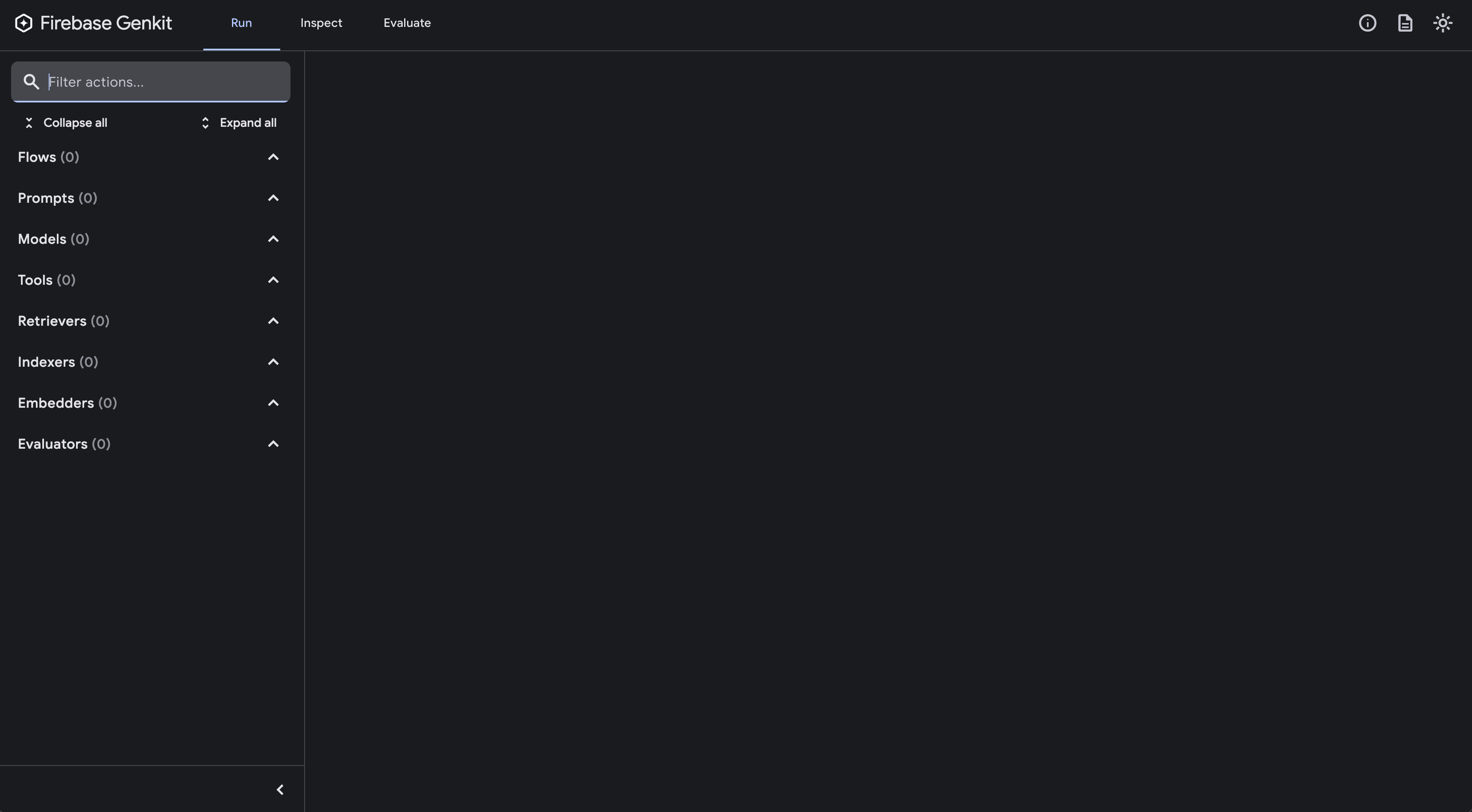
From the Developer UI, you can:
- Test Flows: Run your flows with different inputs
- Inspect Models: View available AI models and their configurations
- Debug Traces: See detailed execution traces of AI interactions
- Manage Tools: Test custom tools before integrating them
2. Module 2: Creating Your First Chat Flow
Understanding Genkit Flows
A Genkit flow is a function that defines the logic for your AI application. Flows can:
- Accept structured input
- Generate AI responses
- Return structured output
- Be exposed as HTTP endpoints
Creating the Basic Server
Create src/index.ts with the following code:
import { genkit, z } from 'genkit';
import { googleAI } from '@genkit-ai/google-genai';
import { startFlowServer } from '@genkit-ai/express';
import * as dotenv from 'dotenv';

// Load environment variables
dotenv.config();

// Initialize Genkit with Google AI plugin
const ai = genkit({
  plugins: [
    googleAI({
      apiKey: process.env.GOOGLE_API_KEY,
    }),
  ],
  model: googleAI.model('gemini-3-flash-preview')
});

// Define a simple chat flow
export const chatFlow = ai.defineFlow(
  {
    name: 'chatFlow',
    inputSchema: z.object({
      message: z.string(),
    }),
    outputSchema: z.object({
      response: z.string(),
    }),
  },
  async (input) => {
    const prompt = `You are a helpful AI assistant. Respond to the user's message: ${input.message}`;

    const llmResponse = await ai.generate({
      prompt: prompt,
      config: {
        temperature: 1,
      },
    });

    return {
      response: llmResponse.text,
    };
  }
);

// Start the Express server with Genkit flows
startFlowServer({
    port: parseInt(process.env.PORT || '3000'),
    flows: [chatFlow],
});

console.log(`Server started on http://localhost:${process.env.PORT || 3000}`);
console.log(`Chat endpoint: POST http://localhost:${process.env.PORT || 3000}/chatFlow`);
Understanding the Code
Let’s break down what’s happening:
- Import dependencies: We import Genkit, Google AI plugin, and Express integration
- Load environment variables: We use dotenv to load our API key from
.env - Initialize Genkit: We configure Genkit with the Google AI plugin
- Define a flow: We create a
chatFlowthat accepts a message and returns a response - Generate AI response: We use
ai.generate()to get a response from Gemini - Start server: We use
startFlowsServer()to expose our flow as an HTTP endpoint
Running Your Application
You can run your application in two ways:
Option 1: Basic Development Mode
Start the development server without the UI:
npm run devYou should see:
Server started on http://localhost:3000
Chat endpoint: POST http://localhost:3000/chatFlow
Option 2: With Genkit Developer UI (Recommended)
Start the application with the Genkit Developer UI:
npm run genkit:devThis will start:
- Your Express server on
http://localhost:3000 - Genkit Developer UI on
http://localhost:4000
The Developer UI provides a visual interface to test your flows without writing curl commands!
Testing Your Chat Flow with the Developer UI
If you’re running with npm run genkit:dev, open http://localhost:4000 in your browser.
- Navigate to the Flows section
- Select
chatFlowfrom the list - Enter your test input:
{ "message": "Hello! Can you tell me a fun fact about TypeScript?" } - Click Run and see the response in real-time
- View the execution trace to see how the AI processed your request
The Developer UI also shows:
- Execution time and token usage
- Complete request/response payloads
- Model configuration used
- Any errors or warnings
Testing Your Chat Flow with curl
Alternatively, test your chat flow using curl:
curl -X POST http://localhost:3000/chatFlow \
  -H "Content-Type: application/json" \
  -d '{"data":{"message":"Hello! Can you tell me a fun fact about TypeScript?"}}'
You should receive a response like:
{
  "result": {
    "response": "TypeScript was created by Anders Hejlsberg, who also created C# and Turbo Pascal! It was first released in 2012 and has since become one of the most popular programming languages for web development."
  }
}
Key Concepts
- Flows: Reusable AI logic that can be exposed as endpoints
- Input/Output Schema: Type-safe definitions using Zod schemas
- Generate: The core function for getting AI responses
- startFlowsServer: Automatically creates Express routes for your flows
3. Module 3: Adding Structured Output
Understanding Structured Output
In Module 2, we created a basic chat flow that returns plain text responses. Now let’s enhance it with structured output - a powerful feature that guarantees the AI response conforms to a specific JSON schema.
Structured output is essential when you need:
- Predictable, parseable responses
- Type-safe data structures
- Integration with databases or APIs
- Consistent formatting across responses
Instead of parsing free-form text, structured output ensures the AI returns exactly the data structure you define.
Why Enhance Our Chat Flow?
Our current chatFlow returns just a string. But what if we want:
- Sentiment analysis alongside the response
- Topics or categories extracted from the conversation
- Confidence scores for the answer
- Suggested follow-up questions
With structured output, we can get all of this in one request!
Enhancing the Chat Flow with Structure
Let’s update our src/index.ts to add structured output to our existing chat flow:
import { genkit, z } from 'genkit';
import { googleAI } from '@genkit-ai/google-genai';
import { startFlowServer } from '@genkit-ai/express';
import * as dotenv from 'dotenv';

dotenv.config();

const ai = genkit({
  plugins: [
    googleAI({
      apiKey: process.env.GOOGLE_API_KEY,
    }),
  ],
  model: googleAI.model('gemini-3-flash-preview')
});

// Original simple chat flow from Module 2
export const chatFlow = ai.defineFlow(
  {
    name: 'chatFlow',
    inputSchema: z.object({
      message: z.string(),
    }),
    outputSchema: z.object({
      response: z.string(),
    }),
  },
  async (input) => {
    const llmResponse = await ai.generate({
      prompt: `You are a helpful AI assistant. Respond to: ${input.message}`,
      config: {
        temperature: 1,
      },
    });

    return {
      response: llmResponse.text,
    };
  }
);

// NEW: Enhanced chat flow with structured output
const StructuredResponseSchema = z.object({
  answer: z.string().describe('The main response to the user'),
  sentiment: z.enum(['positive', 'neutral', 'negative']).describe('The sentiment of the conversation'),
  topics: z.array(z.string()).describe('Main topics discussed in the message'),
  followUpQuestions: z.array(z.string()).describe('Suggested follow-up questions'),
});

export const structuredChatFlow = ai.defineFlow(
  {
    name: 'structuredChatFlow',
    inputSchema: z.object({
      message: z.string(),
    }),
    outputSchema: StructuredResponseSchema,
  },
  async (input) => {
    const result = await ai.generate({
      prompt: `You are a helpful AI assistant. Respond to the user's message and provide additional context.

User message: ${input.message}`,
      output: {
        schema: StructuredResponseSchema,
      },
    });

    return result.output!;
  }
);

startFlowServer({
  port: parseInt(process.env.PORT || '3000'),
  flows: [chatFlow, structuredChatFlow],
});

console.log(`Server started on http://localhost:${process.env.PORT || 3000}`);
console.log(`Available endpoints:`);
console.log(`  POST /chatFlow - Simple chat (Module 2)`);
console.log(`  POST /structuredChatFlow - Enhanced chat with structured output (Module 3)`);
Understanding the Code
Key concepts added in this module:
- Schema Definition: We use Zod schemas to define the exact structure we want
.describe(): Provides hints to the AI about what each field representsoutput.schema: Tells Genkit to enforce structured output- Type Safety: The response is guaranteed to match the schema
z.enum(): Restricts values to specific options (e.g., sentiment)
Comparing the Two Flows
First, test the original simple chat flow from Module 2:
curl -X POST http://localhost:3000/chatFlow \
  -H "Content-Type: application/json" \
  -d '{"data":{"message":"I just got promoted at work!"}}'
Response:
{
  "result": {
    "response": "Congratulations on your promotion! That's fantastic news. Your hard work has clearly paid off!"
  }
}
Now test the enhanced structured chat flow from Module 3:
curl -X POST http://localhost:3000/structuredChatFlow \
  -H "Content-Type: application/json" \
  -d '{"data":{"message":"I just got promoted at work!"}}'
Response (with structured metadata):
{
  "result": {
    "answer": "Congratulations on your promotion! That's fantastic news. Your hard work has clearly paid off!",
    "sentiment": "positive",
    "topics": ["career", "work", "promotion", "success"],
    "followUpQuestions": [
      "What will your new role involve?",
      "When does the promotion take effect?",
      "Are you excited about the new responsibilities?"
    ]
  }
}
Notice how the structured output provides:
- The same quality answer
- Plus sentiment analysis
- Plus extracted topics
- Plus suggested follow-up questions
All in a predictable, parseable format!
Schema Best Practices
✅ Do:
- Keep schemas simple and flat when possible
- Use
.describe()to provide clear guidance - Define required vs optional fields clearly
- Use enums for limited choice fields:
z.enum(['small', 'medium', 'large'])
❌ Avoid:
- Complex unions or recursive schemas
- Validation keywords like
pattern,minLength,maxLength(validate in your code instead) - Deeply nested structures with hundreds of properties
Key Benefits
- Type Safety: TypeScript knows the exact structure of the response
- No Parsing: No need to parse free-form text or validate formats
- Reliability: Guaranteed consistent structure every time
- Integration: Easy to insert into databases or pass to other APIs
4. Module 4: Adding Google Search Grounding - Building Perplexity
Understanding Google Search Grounding
In Module 3, we enhanced our chat flow with structured output. Now let’s take it to the next level by adding Google Search Grounding - enabling our AI to search the web for current information.
This transforms our chat application into a Perplexity-like search assistant that:
- Answers questions with up-to-date information
- Provides cited sources for verification
- Grounds responses in real search results
- Combines structured output with web search
Unlike custom tools, Google Search Grounding is built directly into Gemini models and requires no external API setup.
Enhancing Our Structured Chat with Search
Let’s update our src/index.ts to add Google Search Grounding to our structured chat flow:
import { genkit, z } from 'genkit';
import { googleAI } from '@genkit-ai/google-genai';
import { startFlowServer } from '@genkit-ai/express';
import * as dotenv from 'dotenv';

dotenv.config();

const ai = genkit({
  plugins: [
    googleAI({
      apiKey: process.env.GOOGLE_API_KEY,
    }),
  ],
  model: googleAI.model('gemini-3-flash-preview')
});

// Original simple chat flow from Module 2
export const chatFlow = ai.defineFlow(
  {
    name: 'chatFlow',
    inputSchema: z.object({
      message: z.string(),
    }),
    outputSchema: z.object({
      response: z.string(),
    }),
  },
  async (input) => {
    const llmResponse = await ai.generate({
      prompt: `You are a helpful AI assistant. Respond to: ${input.message}`,
      config: {
        temperature: 1,
      },
    });

    return {
      response: llmResponse.text,
    };
  }
);

// Enhanced chat flow with structured output from Module 3
const StructuredResponseSchema = z.object({
  answer: z.string().describe('The main response to the user'),
  sentiment: z.enum(['positive', 'neutral', 'negative']).describe('The sentiment of the conversation'),
  topics: z.array(z.string()).describe('Main topics discussed in the message'),
  followUpQuestions: z.array(z.string()).describe('Suggested follow-up questions'),
});

export const structuredChatFlow = ai.defineFlow(
  {
    name: 'structuredChatFlow',
    inputSchema: z.object({
      message: z.string(),
    }),
    outputSchema: StructuredResponseSchema,
  },
  async (input) => {
    const result = await ai.generate({
      prompt: `You are a helpful AI assistant. Respond to the user's message and provide additional context.

User message: ${input.message}`,
      output: {
        schema: StructuredResponseSchema,
      },
    });

    return result.output!;
  }
);

// NEW: Perplexity-like flow with Google Search Grounding + Structured Output
const SearchResponseSchema = z.object({
  answer: z.string().describe('The comprehensive answer to the question based on search results'),
  sentiment: z.enum(['positive', 'neutral', 'negative']).describe('The sentiment of the answer'),
  topics: z.array(z.string()).describe('Main topics covered in the answer'),
  followUpQuestions: z.array(z.string()).describe('Suggested follow-up questions'),
  sources: z.array(z.object({
    title: z.string(),
    url: z.string(),
    snippet: z.string(),
  })).describe('Sources used to answer the question'),
  searchPerformed: z.boolean().describe('Whether a web search was performed'),
});

export const perplexityFlow = ai.defineFlow(
  {
    name: 'perplexityFlow',
    inputSchema: z.object({
      question: z.string(),
    }),
    outputSchema: SearchResponseSchema,
  },
  async (input) => {
    // Generate response with Google Search Grounding
    const response = await ai.generate({
      prompt: `Answer this question comprehensively using current information: ${input.question}`,
      config: {
        googleSearchRetrieval: true,
      },
    });

    // Extract grounding metadata
    const groundingMetadata = (response.custom as any)?.candidates?.[0]?.groundingMetadata;

    // Extract sources from grounding metadata
    const sources = [];
    if (groundingMetadata?.groundingChunks) {
      for (const chunk of groundingMetadata.groundingChunks) {
        if (chunk.web) {
          sources.push({
            title: chunk.web.title || 'Untitled',
            url: chunk.web.uri || '',
            snippet: chunk.web.snippet || '',
          });
        }
      }
    }

    // Now use structured output to format the response
    const structuredResult = await ai.generate({
      prompt: `Based on this answer: "${response.text}"

Extract the sentiment, topics, and generate follow-up questions.`,
      output: {
        schema: z.object({
          sentiment: z.enum(['positive', 'neutral', 'negative']),
          topics: z.array(z.string()),
          followUpQuestions: z.array(z.string()),
        }),
      },
    });

    return {
      answer: response.text,
      sentiment: structuredResult.output!.sentiment,
      topics: structuredResult.output!.topics,
      followUpQuestions: structuredResult.output!.followUpQuestions,
      sources: sources.slice(0, 5),
      searchPerformed: sources.length > 0,
    };
  }
);

startFlowServer({
  port: parseInt(process.env.PORT || '3000'),
  flows: [chatFlow, structuredChatFlow, perplexityFlow],
});

console.log(`Server started on http://localhost:${process.env.PORT || 3000}`);
console.log(`Available endpoints:`);
console.log(`  POST /chatFlow - Simple chat (Module 2)`);
console.log(`  POST /structuredChatFlow - Structured chat (Module 3)`);
console.log(`  POST /perplexityFlow - Perplexity-like search (Module 4)`);
Understanding the Code
Key features added in this module:
googleSearchRetrieval: true: Enables Google Search for the request- Grounding Metadata: Contains search results and sources
- Combined Approach: Uses both search AND structured output
- Source Extraction: Parses search results from grounding metadata
- Two-step Process: First search, then structure the response
Comparing All Three Flows
Let’s test the same question across all three modules to see the progression:
Module 2 - Simple Chat (no structure, no search):
curl -X POST http://localhost:3000/chatFlow \
  -H "Content-Type: application/json" \
  -d '{"data":{"message":"What are the latest developments in AI technology?"}}'
Response:
{
  "result": {
    "response": "AI technology has been advancing rapidly with improvements in natural language processing, computer vision, and machine learning models. There have been developments in areas like generative AI and AI safety."
  }
}
Note: General knowledge only, no current information.
Module 3 - Structured Chat (structure, no search):
curl -X POST http://localhost:3000/structuredChatFlow \
  -H "Content-Type: application/json" \
  -d '{"data":{"message":"What are the latest developments in AI technology?"}}'
Response:
{
  "result": {
    "answer": "AI technology has been advancing rapidly with improvements in natural language processing, computer vision, and machine learning models.",
    "sentiment": "neutral",
    "topics": ["AI", "technology", "machine learning", "NLP"],
    "followUpQuestions": [
      "Which AI companies are leading the innovation?",
      "What are the ethical implications?",
      "How will this affect jobs?"
    ]
  }
}
Note: Structured output but still general knowledge.
Module 4 - Perplexity Flow (structure + search):
curl -X POST http://localhost:3000/perplexityFlow \
  -H "Content-Type: application/json" \
  -d '{"data":{"question":"What are the latest developments in AI technology?"}}'
Response:
{
  "result": {
    "answer": "Recent developments in AI technology in early 2026 include the release of Gemini 3 models with enhanced reasoning capabilities, advances in multimodal AI that seamlessly combines text, image, and video understanding, and significant progress in AI agents that can autonomously perform complex tasks. There's also increased focus on AI safety and responsible development practices across the industry.",
    "sentiment": "neutral",
    "topics": ["AI", "technology", "Gemini", "multimodal AI", "AI agents", "AI safety"],
    "followUpQuestions": [
      "How do Gemini 3 models compare to previous versions?",
      "What are the practical applications of multimodal AI?",
      "What safety measures are being implemented?"
    ],
    "sources": [
      {
        "title": "Google AI Blog - Gemini 3 Release",
        "url": "https://ai.google/blog/gemini-3",
        "snippet": "Introducing Gemini 3 with breakthrough reasoning..."
      },
      {
        "title": "AI News 2026 - Latest Developments",
        "url": "https://example.com/ai-2026",
        "snippet": "The AI landscape in 2026 shows remarkable progress..."
      }
    ],
    "searchPerformed": true
  }
}
Note: Current information + structured output + sources!
The Evolution
See how each module built on the previous:
- Module 2: Basic chat with plain text
- Module 3: Added structure (sentiment, topics, follow-ups)
- Module 4: Added search (current info + sources) while keeping structure
How Our Perplexity Flow Works
- User asks a question: “What are the latest developments in AI?”
- First Generation (with search):
- Model determines it needs current information
- Google Search retrieves relevant recent information
- Model generates answer grounded in search results
- We extract sources from grounding metadata
- Second Generation (structured analysis):
- Takes the search-grounded answer
- Extracts sentiment, topics, and generates follow-ups
- Returns structured output
- Final Response: Complete package with answer, structure, AND sources
This two-step approach combines the best of Module 3 (structure) and Module 4 (search)!
Advanced Configuration
You can customize the search behavior:
const response = await ai.generate({
  prompt: input.question,
  config: {
    googleSearchRetrieval: {
      dynamicRetrievalConfig: {
        mode: 'MODE_DYNAMIC',
        dynamicThreshold: 0.7, // Control when to search
      },
    },
  },
});
Configuration Options:
- mode:
'MODE_DYNAMIC'- Let the model decide when to search - dynamicThreshold: Controls search trigger sensitivity (0.0 to 1.0)
Accessing Additional Metadata
You can access more search information:
const groundingMetadata = (response.custom as any)?.candidates?.[0]?.groundingMetadata;

// Search queries used
const queries = (response.custom as any)?.candidates?.[0]?.webSearchQueries;
console.log('Search queries:', queries);

// Grounding supports (which parts are supported by which sources)
if (groundingMetadata?.groundingSupports) {
  for (const support of groundingMetadata.groundingSupports) {
    console.log('Text segment:', support.segment?.text);
    console.log('Supporting chunks:', support.groundingChunkIndices);
    console.log('Confidence:', support.confidenceScores);
  }
}
5. Conclusion and Next Steps
What You’ve Built
Congratulations! You’ve created a complete Perplexity-like AI search application with:
✅ Express server with RESTful endpoints
✅ Genkit AI integration with Google Gemini models
✅ Basic chat flow for simple Q&A
✅ Structured output with sentiment, topics, and follow-up questions
✅ Google Search Grounding for current, factual information
✅ Source citations for verifiable answers
✅ Type-safe schemas using Zod
Key Takeaways
- Genkit with Express: You can use Genkit outside of Firebase Functions with
@genkit-ai/express - Incremental Development: Build features step-by-step, each module enhancing the previous
- Structured Output: Use Zod schemas to get predictable, parseable responses
- Google Search Grounding: Access real-time web information without custom APIs
- Type Safety: TypeScript + Zod ensures reliability and better developer experience
- Genkit Developer UI: Powerful testing and debugging without writing test scripts
The Journey
You progressively built three flows:
- Module 2:
chatFlow- Simple AI chat - Module 3:
structuredChatFlow- Added metadata (sentiment, topics, follow-ups) - Module 4:
perplexityFlow- Added web search + sources = Perplexity clone!
Next Steps
Enhance Your Perplexity Clone
- Add Conversation History: Implement session management for multi-turn conversations
- Add Custom Tools: Create tools for calculator, code execution, or specialized APIs
- Streaming Responses: Stream answers in real-time for better UX
- Frontend: Build a React or Next.js chat interface
- Rate Limiting: Implement rate limiting to prevent abuse
- Caching: Cache search results to reduce API calls
- Authentication: Add user authentication and API keys
Example: Adding Streaming
export const streamPerplexityFlow = ai.defineFlow(
  {
    name: 'streamPerplexity',
    inputSchema: z.object({
      question: z.string(),
    }),
    outputSchema: z.string(),
    streamSchema: z.string(),
  },
  async (input, { stream }) => {
    // Generate with search grounding
    const response = await ai.generate({
      prompt: `Answer this question: ${input.question}`,
      config: {
        googleSearchRetrieval: true,
      },
    });

    // Stream response word by word
    const words = response.text.split(' ');
    for (const word of words) {
      stream(word + ' ');
      await new Promise(resolve => setTimeout(resolve, 50));
    }

    return response.text;
  }
);
Example: Adding Conversation Context
const chatSessions = new Map<string, any>();

export const conversationalPerplexityFlow = ai.defineFlow(
  {
    name: 'conversationalPerplexity',
    inputSchema: z.object({
      sessionId: z.string(),
      question: z.string(),
    }),
    outputSchema: SearchResponseSchema,
  },
  async (input) => {
    let chat = chatSessions.get(input.sessionId);

    if (!chat) {
      chat = ai.chat({
        model: googleAI.model('gemini-2.5-flash'),
        system: 'You are a helpful search assistant. Use web search to provide accurate, cited answers.',
      });
      chatSessions.set(input.sessionId, chat);
    }

    const { text } = await chat.send(input.question, {
      config: { googleSearchRetrieval: true },
    });

    // Extract sources and structure...
    return { answer: text, sources, /* ... */ };
  }
);
Production Best Practices
- Environment Management: Use different API keys for dev/staging/prod
- Error Handling: Implement proper error handling and user-friendly messages
- Logging: Add structured logging for debugging and monitoring
- Cost Control: Monitor API usage and implement quotas
- Security: Validate inputs, sanitize outputs, implement CORS
- Performance: Implement response caching for common queries
- Monitoring: Track response times, error rates, and search accuracy
Deployment Options
- Google Cloud Run: Containerize and deploy to Cloud Run (serverless, auto-scaling)
- Vercel/Netlify: Deploy as serverless functions with edge caching
- AWS: Use ECS, App Runner, or Lambda with function URLs
- DigitalOcean: Deploy on App Platform
- Fly.io: Deploy globally with edge compute
Additional Resources
- Genkit Documentation
- Genkit Express Plugin
- Google AI Studio
- Google Search Grounding Docs
- Zod Documentation
- Express.js Guide
Sample Use Cases
Now that you have a Perplexity-like search app, you can build:
- Research Assistant: Help students research topics with cited sources
- News Aggregator: Get latest news on specific topics with sources
- Product Research: Compare products with current pricing and reviews
- Travel Planner: Get current travel info, weather, and recommendations
- Technical Q&A: Answer programming questions with latest documentation
- Market Intelligence: Track company news and market trends
Community and Support
Thank You!
Thank you for completing this workshop! You now have the skills to build production-ready AI search applications with Genkit and Express. You’ve learned how to:
- Build RESTful APIs with Genkit flows
- Use structured output for reliable responses
- Implement Google Search Grounding for current information
- Create a Perplexity-like search experience
- Test and debug with the Genkit Developer UI
Your Perplexity clone is ready to deploy and customize for your specific use case!
Happy coding! 🚀